Tuesday, April 12, 2016

What to Do If Your Computer Gets a Virus

What to do if your computer gets a virus

Computer surrounded by antivirus software boxes and icons
Computer viruses can be dangerous and should be taken seriously, but there are ways to remove them before serious damage is done. We'll go through the basic steps of virus scanning and removal, but keep in mind that it may still be necessary to hire a technical support professional to completely remove the virus and repair your computer.

Antivirus software

First, if you don't already have an antivirus program, install one. Be sure you only have one antivirus program installed, because having more than one can cause significant problems. Our Internet Safety tutorial discusses selecting and installing antivirus software.

Run a system scan

Once you've verified that your antivirus program is running, begin a scan. If you're unsure how to do this, review the documentation for your antivirus program, which usually can be found on the developer's website. Some programs offer several types of scans, and you may want to run the most thorough type, usually called a full system scan. This may take several hours. Usually, you do not need to remain at the computer during the scan.
If no viruses or malware are found but you are still experiencing problems with your computer, try other troubleshooting techniques or have your computer assessed by a support professional.
Clicking run scan in a virus scanner

Review discovered threats and recommended action

Either during the course of the scan or when it is complete, the antivirus program will notify you of discovered threats and recommend various courses of action. Usually the recommended action for each threat is the best choice. If the antivirus is unable to remove any threat, don't ignore it. Investigate how to proceed with some Internet searches or by contacting a professional. The support team for the antivirus program can often help you at this point.
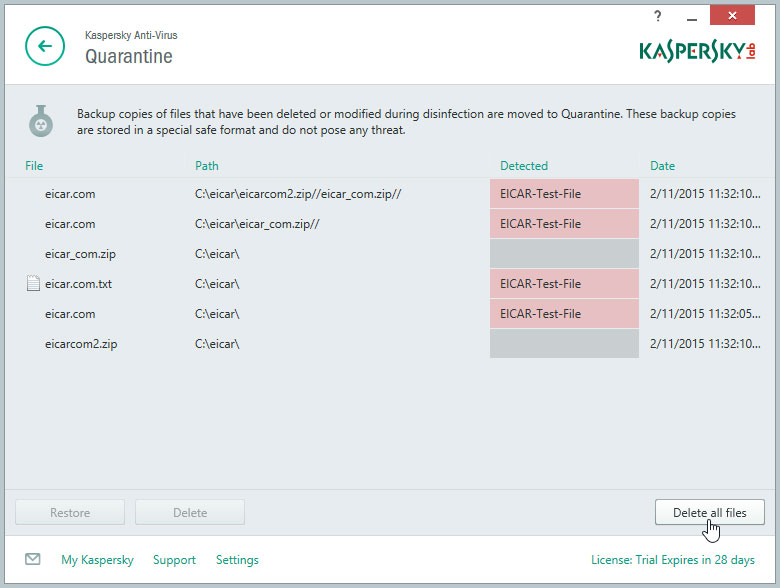
Virus scan results

Malware

Your antivirus program may be bundled with an anti-malware program. If it isn't, you may want to install an anti-malware program and run a scan. This can help to find any malware your antivirus may have missed. Antivirus and anti-malware programs scan for slightly different things but they work similarly, so you can follow the same steps in this tutorial.

If all else fails

If you are unable to remove the virus—or if your programs or operating system are damaged beyond repair—it may be necessary for you to erase the hard drive and reinstall your operating system and programs. At this point, you may want to consider hiring a technical support professional, but it is still possible to do this yourself. If you perform a full reformat of all your hard drives during this process, it is almost guaranteed to eliminate even the most pernicious viruses, but all data on your drives will be lost. This is one of many reasons it is crucial tokeep regular backups of your data before your computer develops any significant problems. If you restore your data from backups after reformatting your hard drive, perform a virus scan on your restored data to be sure it is not infected with a virus.
An ill computer considering being erased or seeing a professional technician.

How to Avoid Malware

How to avoid malware

Malware is one of the most common hazards to your computer on the Internet, but it's easy to avoid. Developing safe and smart browsing habits can protect you from malware and other threats like viruses. Securing your computer and learning how to identify and avoid suspicious links are the fundamentals of safe browsing habits.

Secure your computer

Limiting your computer's vulnerability to malware is a crucial safe browsing habit. You can protect your computer by running antivirus and antimalwaresoftware. These programs can block malware from being installed and can remove it if it does get onto your computer. Even if you don't see signs of malware on your computer, running regular scans can catch any malware that has escaped notice.
Many malware programs take advantage of security flaws in Windows and other software. Keeping your OS, browser, and other programs updated is an important step to protecting your computer. The security patches in these updates make your computer immune to many threats.
Windows Update

Back up your files

Some malware can delete or corrupt data on your drives. Preparing for the possibility of data loss is much easier and cheaper than attempting to recover data after a malware attack. The two most common ways of doing this are copying your data to an external drive and using an online backup service.
Learn more in our lesson on Backing Up Your Files.

Avoid suspicious links

Most malware requires you to click something to download and install it. These links are often disguised as something they are not. If you are aware of what suspicious links can look like, you can avoid them. Here are some examples of misleading links concealing malware downloads.
  • Ads on websites can look like system messages or diagnosticswarning you that something is wrong with your computer, like the image below.
    Malware ad
  • Ads can look like messages saying you have won a prize and instructing you to click to claim it.
  • Pop-up windows frequently contain malware or attempt to lead you to a less secure site. Most reputable sites don't use pop-up windows. Many browsers block pop-up windows by default.
  • If you are prompted to download something you weren't expecting, or if it seems to be unrelated to the page you were on, it's probably malware.
  • Headlines that are ambiguous and sensational that encourage you to click to read more are called clickbait. Sites that use lots of clickbait headlines are more likely to contain links to malware.

Identify suspicious sites

If you're ever unsure whether a website or download is safe, close it and investigate the site before returning to it. It's always a good idea to be cautious when browsing unfamiliar sites.
  • Ask your friends if the site is reputable or if they have any experiences with the site.
  • Search for information about the site. Use a search engine to find news about the organization that runs the site, or look for posts on forums about other people's experiences with that site.
  • Check the address bar in your browser. Some malicious websites are designed to look like other well-known sites, but your address bar will tell you which site you're actually on. If you are no longer on the site you expected to be, it's suspicious.
  • Run a Google Safe Browsing diagnostic on the site. Copy and paste the URL of a site into the search box on the diagnostic page and click the search button. This will display a site safety report.
    Google Safe Browsing

How to Customize Your Desktop Background

How to customize your desktop background

Want your computer to feel a bit more like, well, your computer? You might want to consider changing your wallpaper.
The wallpaper is the image that appears behind the icons on your computer's desktop—that's why it's usually called a desktop background. On most computers, you can change your background by right-clicking the desktop and selecting Personalize.
personalizing the desktop
Then select Desktop Background. By default, you'll see the images that were included with your computer.
changing the desktop background
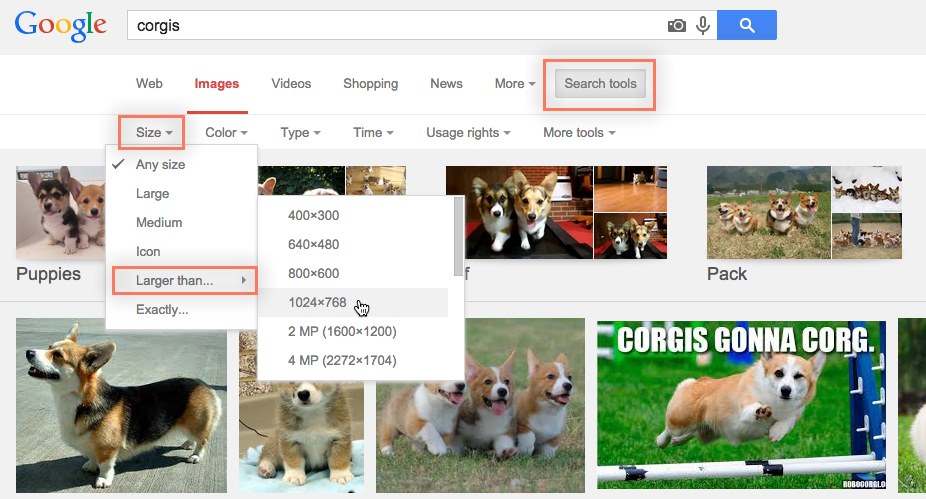
If you're looking for something specific, might we suggest Google Image Search? Its custom search tools allow you to search for images by size, which is perfect when you're looking for a large picture (we recommend an image that'sat least 1024 x 768). Anything smaller will look pixelated or grainy when stretched across your desktop.
searching Google Images
When you find an image you like, just select it and choose View image.
clicking view image
Then click and drag the picture to your desktop.
dragging the image to the desktop
You can now set the image as your desktop background. Right-click the image and select Set as desktop background.
setting the desktop background
You can use this same technique to turn any of your personal photos into a desktop background.
the applied desktop background

How to Update Your Software

How to update your software

Keeping your software up to date is a crucial practice in Internet safety. Most software updates automatically by default, but you should know how to check the updates and begin the process yourself. Knowing how to keep your software updated can improve your computer's stability and security and let you know about new features, helping you be an informed and empowered user.
You can read more about Internet safety practices here.

Update your operating system

Keeping your operating system updated is one of the most important steps in protecting yourself from viruses, malware, and other Internet security threats.

Windows

To update Windows, first open the Control Panel. If you don't know where theControl Panel is, check out this lesson in Windows Basics. In the search bar in the Control Panel, type update. Under Windows Update, click Check for updates.
Under Windows Updates, clicking check for updates
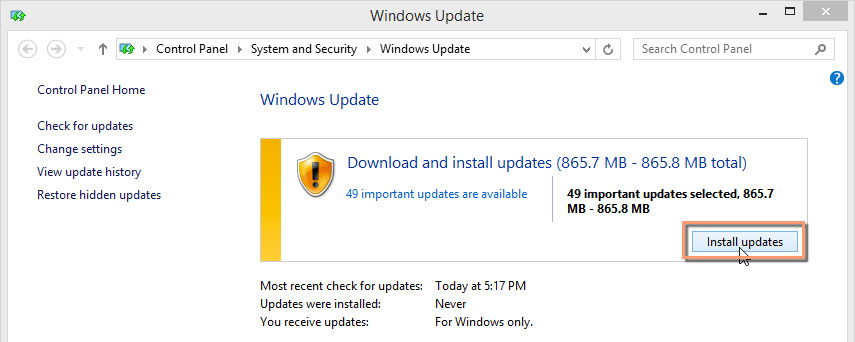
It may take a moment for Windows to search for updates. Once it does, if there are any updates available it will prompt you to install them.
Clicking Install updates
It may take a while to install all the updates. It's safe to leave the computer and do something else while it finishes. Once it's done, Windows will probably prompt you to restart the computer. If you need to do anything else after this, Windows will prompt you; otherwise, you're up to date!

Mac OS X

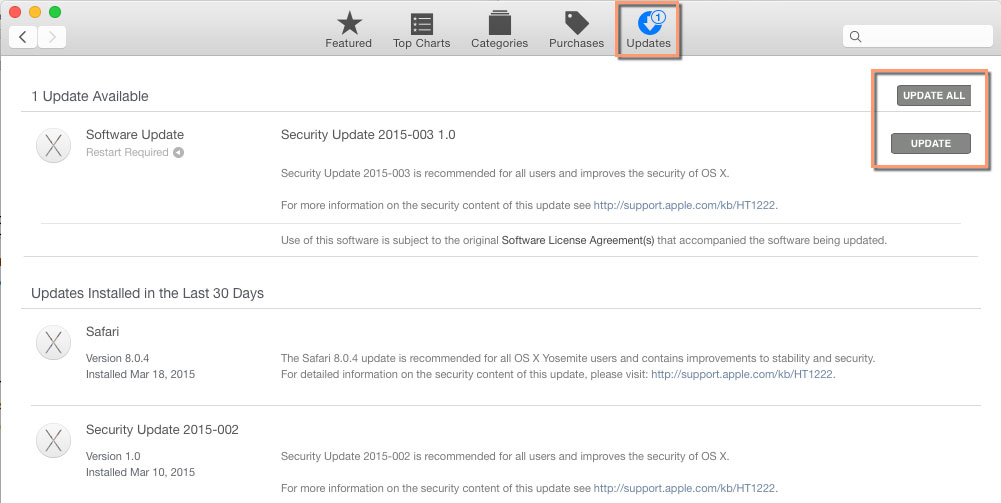
To update Mac OS X, open the App Store, then click Updates at the top. OS X updates will be at the top of the list of available updates. On the right side of the screen, there are buttons to update individual apps or to apply all available updates.
Mac App Store update page
Apple has an excellent support page on how to check for updates for OS X and apps.

Update your apps

For many apps, regular updates provide new features and stability rather than security patches, so it isn't necessary to update them as frequently. However, for more essential software like web browsers and antivirus software, security updates are just as critical as operating system updates.
Many apps in both OS X and Windows will automatically check for updates when you open them. If you installed them through the App Store or another distribution platform, the program will alert you about updates. For standalone programs, take time to explore the program's menus and learn how to run the update process.
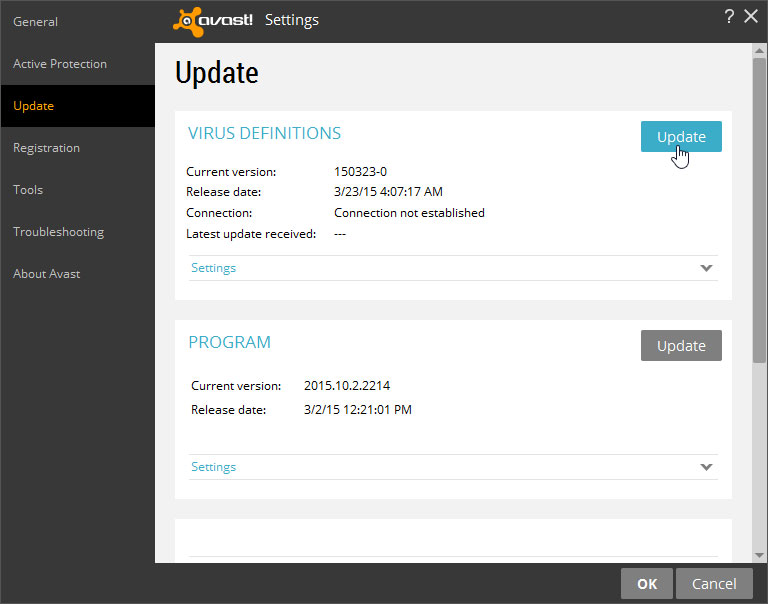
For example, in Avast! Free Antivirus, there is an Update page on the Settings screen.
Update virus definitions in Avast!
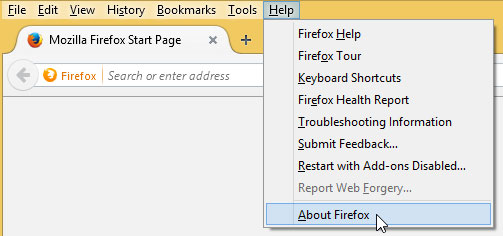
However, in Firefox, the About Firefox screen in the Help menu also checks for updates.
Clicking About Firefox

How to Set Up a Wi-Fi Network

How to set up a Wi-Fi network

wi-fi connected devices
The Internet is a really powerful tool. It gives us access to all kinds of information at a moment's notice—think email, Google search, and Wikipedia. So there's something a little counterintuitive about only being able to use the Internet when you sit down at a desktop computer. What if you could use the Internet from anywhere in your home or office?
If you already have high-speed (broadband) Internet service at your house, it's pretty easy to create your own home wireless network. Commonly known asWi-Fi, a wireless network allows you to connect laptops, smartphones, and other mobile devices to your home Internet service without an Ethernet cable.

Purchase a wireless router

a wireless router
To create your own Wi-Fi network, you'll need a wireless router. This is the device that will broadcast the Wi-Fi signal from your Internet modem throughout your house. Your Internet service provider (ISP) may offer you a wireless router for a small monthly fee. If you've never set up a Wi-Fi network before, this may be the easiest option.
If you want to buy your own router, we'd recommend spending a little more time researching different options. PC Mag offers a comprehensive guide onHow to Buy a Wireless Router.
Some Internet modems may already have a built-in wireless router, which means you won't need to purchase a separate one. 

Connect the cables

connecting the cables for a wi-fi router
  1. Once you've acquired a wireless router, you'll need to connect it to your existing Internet modem.
  2. Connect an Ethernet cable from your modem to the wireless router (there is usually a short Ethernet cable included with your wireless router for this purpose).
  3. Plug in the power cable for the wireless router.
  4. Wait at least 30-60 seconds and make sure the lights on your router are working correctly.

Configure your router

Next, you'll need to use your computer to configure your router's default settings. This includes setting a unique name and password for your wireless network.
  1. Using your web browser, enter the router's default IP address into the address bar, then press Enter. Your router's instructions should include this information, but some of the most common addresses include192.168.0.1192.168.1.1, and 192.168.2.1.
  2. The router's sign-in page will appear. Again, the exact sign-in details should be included with your router's instructions, but most routers use a standard user name and password combination, such as admin andpassword.
  3. Your router's settings page will appear. Locate and select the Network Name setting, then enter a unique network name.
  4. Locate and select the Network Password setting, and choose an Encryption option. There are several types of encryption you can use, but we recommend WPA2—this is generally considered to be the most secure.
  5. Enter your desired password. Make sure to use a strong password to help ensure no one else can access your network.
  6. Locate and select the Save button to save your settings.

Connect!

That's it! Now you're ready to connect to your Wi-Fi network and make sure it's working. The process for connecting to a Wi-Fi network will vary slightly depending on what type of computer or device you're using, but any system will require these basics steps:
  1. Locate your computer's network settings and search for nearby Wi-Fi networks.
  2. Select your network and enter your password.
  3. If the connection is successful, open your web browser and try navigating to a webpage like www.google.com. If the page loads, it means your Wi-Fi connection is working correctly!

Congratulations!

You've just set up your own home wireless network—way to go!

What is a PDF File?

What is a PDF file?

Adobe PDF files—short for portable document format files—are one of the most commonly used file types today. If you've ever downloaded a printable form or document from the Web, such as an IRS tax form, there's a good chance it was a PDF file. Whenever you see a file that ends with .pdf, that means it's a PDF file.

Why use PDF files?

Let's say you create a newsletter in Microsoft Word and share it as a .docx file, which is the default file format for Word documents. Unless everyone has Microsoft Word installed on their computers, there's no guarantee that they would be able to open and view the newsletter. And because Word documents are meant to be edited, there's a chance that some of the formatting and text in your document may be shifted around.
By contrast, PDF files are primarily meant for viewing, not editing. One reason they're so popular is that PDFs can preserve document formatting, which makes them more shareable and helps them to look the same on any device. Sharing the newsletter as a PDF file would help ensure everyone is able to view it as you intended.

Opening PDF files

Opening and viewing a PDF file is pretty simple. Most modern web browsers will open PDF files directly in your browser window instead of downloading them to your computer. If your browser can't do this, it should prompt you to download the file instead. Try clicking this link to see how it works on your computer.
If you need to view a PDF file just once, it's usually easiest to open it in your web browser. If you need to access the PDF later, you'll want to save a copy to your computer. This process will vary depending on your web browser, but in the example below the Save PDF button can be found near the upper-right corner.
viewing a PDF in a browser window
If the PDF file is already on your computer, you can simply double-click to open it with the default PDF application.
opening a PDF file saved to a computer
If your computer uses Windows 7 or earlier, you may need to download a free PDF viewer (such as Adobe Reader) before you can view PDF files.
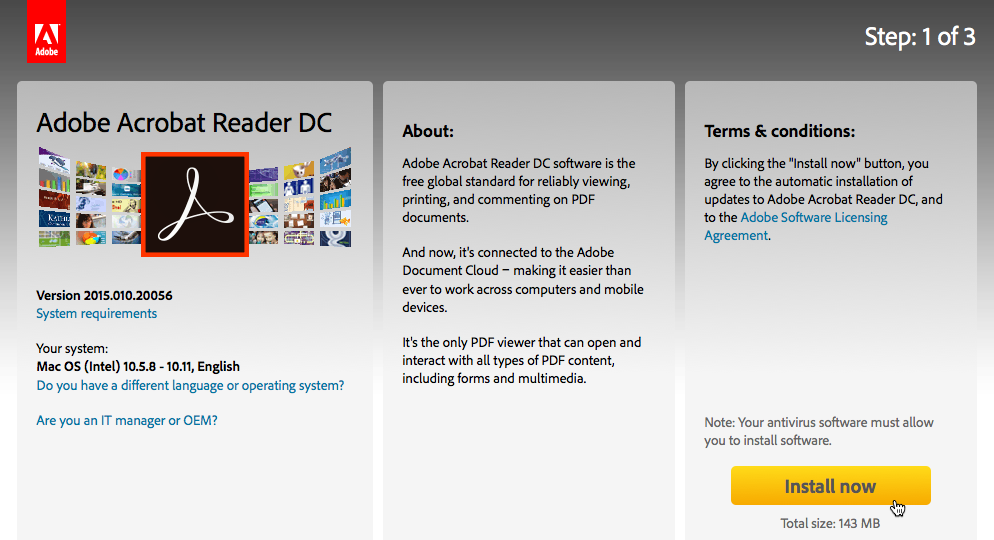
downloading Adobe Reader

Editing PDF files

As we mentioned earlier, PDFs are primarily meant for viewing, not editing. However, there may be times when you encounter a PDF that allows you to enter certain information, like name and address. These PDFs use a special feature called form fields, which allow you to type new information into the document and save your changes. For example, this PDF contains several form fields for entering your name, address, and other information.
editing a PDF with form fields
This feature is not supported in all web browsers, so you may need to download the PDF before you can use form fields to add your information.
There may also be times when you want to make small edits to PDF files, like adding a comment or highlighting text. To learn more about editing PDF files, check out our lesson on how to Edit and Merge PDFs.

Creating PDF files

There are several ways to create PDF files, but the method will largely depend on the device you're using. For example, if you're using Windows 10 you can go to the Print dialog box, then select PDF from the list of printers at the top. This allows you to create a PDF of anything you would normally be able to print, including documents, emails, and webpages.
using the Print dialog box to create a PDF file
If you're on a Mac, the Print dialog box has a PDF menu that allows you to save a file as a PDF.
If your computer has Windows 8 or earlier, you have a few options. The simplest method is to use software that supports a PDF export, such as Microsoft Office or Google Chrome.
exporting a PDF document from Microsoft Word
Another option is to use a PDF converter like Smallpdf, which is a free app that runs in your web browser. Smallpdf can convert various file types—such as Microsoft Office documents—into a PDF format.
the SmallPDF.com website

OK, those are the basics of PDF files!

Free Software

Free software

A smartphone surrounded by icons of apps
There are free programs available for almost any purpose you can imagine. If you're looking for free software for a specific task or want to find a free alternative to an expensive commercial program, it's probably somewhere on the Internet. Often, the most difficult part is finding the safest, most reliable free programs among the thousands of other free programs.
Usually, the best way to find free software for Windows is to do an Internet search. On Android and iOS devices, the best way to find free software is to search in the Play Store or App Store for apps that are listed as free. For Mac OS, both the App Store and Internet searches are effective methods for finding free software.
When there is no fee to use software, it is sometimes called software gratis orfreeware.

Safely searching for free software

When searching for free software, distinguishing good software from bad or dangerous software is crucial. These steps will help you find a program that is safe, reliable, and performs the functions you need.
  • Identify your needs and the tasks you are trying to accomplish. Do you need a simple tool or something very powerful? Are you trying to perform a specialized task, or are you looking for something generally useful? Are you just looking to save money?
  • Search for information on a program before downloading it. Determine if the publisher is reliable and well-liked, and if the program is safe and stable and has the features you want.
  • Read reviews on neutral third-party sites; a publisher may remove negative reviews from its own site.
  • Don't click misleading advertisements designed to look like download links or error messages. Carefully examine download links before clicking, or install an adblocker.
  • Avoid malware included in installers. If an installer has options for custom search bars or other programs that seem unrelated, tell it not to install these.
  • Download directly from the developer's website rather than from a third-party site. Many—but not all—third-party file hosting sites include malware with their installers.
  • Scan for viruses and malware immediately after installing a new program. It's better to avoid installing malware, but scans will probably catch anything you missed.
Misleading ads on a download page

In the image above, the download button at the bottom-left is the real download link, while the other two are misleading ads.
Keep in mind that these safety tips are good practices whether you're downloading free software or paying for software. There's nothing stopping a distributor from bundling malware with a program and still charging you a fee for it, and plenty of commercial software is unstable or ineffective. Be aware at all times of common unscrupulous practices so you can avoid them and choose the best software for your needs.

Examples of free software

One of the biggest advantages of free software is determining your specific needs and searching for the program that's right for you, but sometimes it's helpful to see what software other people are using. Here's a list of some of our favorite free software for common tasks.
Security and system optimization
Productivity
Media

Why is some software free?

There are many reasons a developer may not be charging a fee for its software. In most cases, developers are still earning money through other means. Here are some of the common ways free software still makes money.
  • Donations: The software is free, but users can donate money to support the developer.
  • Advertisements: The developer is paid by other companies to place advertisements in the software or on its website.
  • Data mining: The software collects information about users and sells this to advertisers or marketing researchers. This is often used in combination with advertisements.
  • Bundling other software: Other software distributors pay the developer to bundle other programs with its software. This often includes malware.
  • In-app purchases: The base software is free, but users can pay fees to unlock additional features.
  • Premium products or subscriptions: The software itself is free, but the developer sells more advanced versions of the program or other programs.
Not all free software developers earn money from software. They may have full-time jobs and make software in their free time as a hobby, they may be working under a license that prohibits earning profit from the software, or they might just enjoy participating in free software communities on the Internet.
Some software is freely available because the developers adhere to certain social and ethical guidelines. This software is sometimes called software libre, although it's also sometimes called free software, using the definition of freethat means liberty, not free of charge. You can read more about this type of free software at the Mozilla Foundation or the Free Software Foundation.

Support free software developers

After using free software for a while, if you are happy with the programs consider supporting their developers. Visit their websites, and look for ways you can help. They may have links for you to donate money, contribute your talents to their projects, or promote their software on social media. But remember, your support is a choice, not an obligation. Free software communities thrive on individual choice and mutual assistance.